 Dave Johnson
In preparing for my upcoming tutorial which is a beginner’s guide to installing Node.js on a Raspberry Pi 2, I ran into an issue. After getting the RasPi is up and running on the network, I was not able to ping its hostname (raspberrypi, by default) from another machine and find it so I could connect to it through Putty, xrdp, VNC, etc. After all, I wanted to be able to run headless and disconnect the monitor, USB keyboard/mouse, and still connect to it from another machine on my network.
One option was to run ifconfigon the RasPi and take note of the IP address for eth0 (if connected through Ethernet) or wlan0 (if connected through Wi-Fi). I could then hard code this IP address in the hosts file on the Windows (or other) machine. The problem is that the RasPi retrieves its IP address through DHCP by default from my local router at home, and this IP address is not guaranteed to remain the same. I could log into my router and note the static IP address range and reconfigure the RasPi to use one of these static IP address rather than DHCP. However, I am preparing a beginner’s tutorial and not all of my readers want to become Linux TCP/IP networking experts.
I discovered an elegant solution if you are trying to ping and connect to the RasPi from another Windows machine on the same network. Samba to the rescue!
Samba is an implementation of the SMB networking protocol and it allows Linux machines (including the RasPi) to inter-operate with Windows machines and look like another Windows machine on the network. Most people think of installing Samba when they want to create Windows file shares on the RasPi. By virtue of installing Samba—even if you are not planning to do file sharing with Windows machines—you get the benefit of having your RasPi broadcast its hostname and become discoverable to the Windows machines on your network.
Let’s go ahead and install Samba on our RasPi. First, launch the terminal as shown in the following Raspbian screenshot.
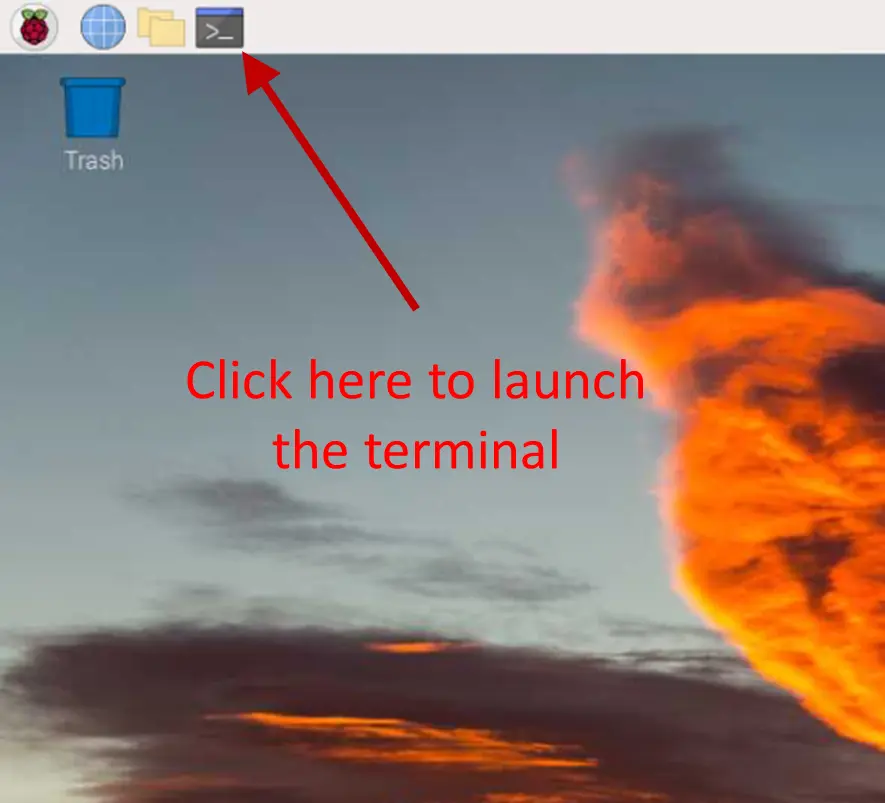
From the terminal $ prompt, enter the following command:
sudo apt-get -y install samba
The “-y” option will automatically answer yes to the default questions which is what we want in this context.
After the installation is complete, jump over to your Windows machine and enter the following command from the prompt:
C:/> ping RASPBERRYPI
Please note that the host name (RASPBERRRYPI) is entered in upper case. This is required if you are running Windows 10 update 1803 or higher since NetBIOS/WINS name resolution changed in this release. As another option, you can issue this command with the host name in lower case:
C:/> ping -4 raspberrypi
This will resolve the host name using IPv4 rather than IPv6 and the name should resolve.
Your Windows machine should respond back with successful ping replies. You no longer need to remember the IP address of your RasPi to ping it, connect to it from Putty, etc. or hard code it in your hosts file and hope it does not change.
After this works, you may also want to install the xrdp package so you can use the Windows Remote Desktop software to connect to your RasPi graphical user interface from your Windows machine. I’ll talk about that as part of my tutorial in the next post.
Hope to see you then!