 Dave Johnson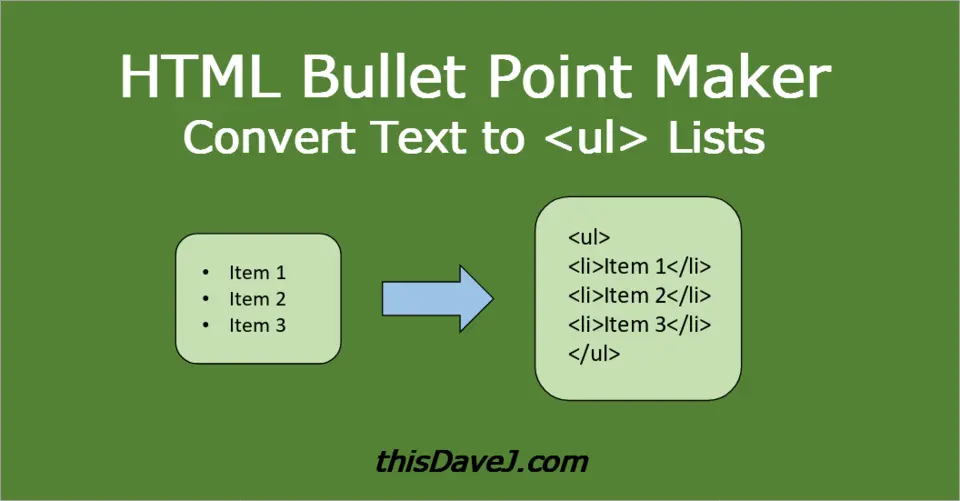
This tool is designed to do one thing and hopefully do one thing well 😀: to quickly and easily convert your text into HTML unordered lists (<ul>). Simply paste your text into the text box below, and you’ll receive a cleanly formatted HTML unordered list for displaying bullet points in HTML. Here are the steps:
- Copy (Ctrl+C) your text. Copy the list you want to convert from any word processor (Microsoft Word, Google Docs, Apple Pages), text editor (like Notepad, vim, etc.), or other source. The tool understands various input formats, including text with sub-bullets (see supported input formats below).
- Paste (Ctrl+V) into the text box. Your bulleted text will be instantly transformed into HTML. As a bonus, the generated HTML code is automatically copied to your clipboard, ready to be pasted wherever you need it.
Key Features
- Privacy Respecting 🔒: The Bullet Point Maker is written solely in client-side JavaScript. All text processing happens directly in your browser on your local system, ensuring your data remains private.
- Versatile Input 🤸: You can paste lines directly from text files as well as from a variety of other sources including Microsoft Word, Google Docs, and Apple Pages. For the bullet point text, ensure at least one space separates the bullet character from the text.
📝 Note: For many purposes, a single level of bullet point indentation is sufficient. To create multi-level bullet lists, you’ll need to use a plain text editor (e.g., Notepad, Vim) as detailed under option 4 below.
Supported Input Formats
💡 Tip: Give the Bullet Point Maker a try! Copy the input text from the examples below and paste it into the text box above to see this tool in action.
Option 1: Bullet point text from Word, Google Docs, etc
Input:
· Item 1
· Item 2
· Item 3
Result:
<ul>
<li>Item 1</li>
<li>Item 2</li>
<li>Item 3</li>
</ul>
This is ideal for simple lists. For multiple indentation levels, plain text editors offer more control.
Option 2: Simple lines of text (no leading bullets)
Feel free to omit leading bullets. Simply enter your lines of text to generate HTML bullet points.
Input:
Item 1
Item 2
Item 3
Result:
<ul>
<li>Item 1</li>
<li>Item 2</li>
<li>Item 3</li>
</ul>
Option 3: Plain text bullet point text
In a plain text editor such as Notepad or vim, run with the bullet point character of your choice. The tool supports most non-alphabetic characters as bullet points including -, *, and +.
Input:
- Item 1
- Item 2
- Item 3
Result:
<ul>
<li>Item 1</li>
<li>Item 2</li>
<li>Item 3</li>
</ul>
Option 4: Plain text bullet point text with multiple indention levels
Use plain text editors (Notepad, vim, etc.) to achieve bullets at multiple indention levels. Two spaces for each indention level works well, but feel free to use a different number of spaces as long you use a consistent number of spaces for each indention level desired.
Input:
- Item 1
  - sub item 1a
  - sub item 1b
- Item 2
- Item 3
Result:
<ul>
<li>Item 1</li>
  <ul>
  <li>sub item 1a</li>
  <li>sub item 1b</li>
  </ul>
<li>Item 2</li>
<li>Item 3</li>
</ul>
It’s even possible to achieve more than two levels of bullet point indentation as shown in this example:
Input:
- Item 1
- Item 2
  - Item 2a
    - Item 2b
      - Item 2c
- Item 3
Result:
<ul>
<li>Item 1</li>
<li>Item 2</li>
  <ul>
  <li>Item 2a</li>
    <ul>
    <li>Item 2b</li>
      <ul>
      <li>Item 2c</li>
      </ul>
    </ul>
  </ul>
<li>Item 3</li>
</ul>
Troubleshooting Tips
- To prevent unintended bullet points, make sure each input text line is a single, unbroken line without line breaks.
- Any blank lines will be ignored. To convert distinct groups of lines into bullet points, process each group individually. Paste the first set, move the output, and then repeat for the other sets.
Additional Notes
If you need more advanced formatting capabilities, consider using a full-on Markdown to HTML conversion tool such as Pandoc. My tool provided here is more laser-focused and designed to create HTML-formatted bullet point text from a wide variety of text input scenarios such as handling text from Word (without retaining the bullets originally in the Word text) and handling lines of text that don’t contain leading bullet points.
I hope you enjoy this tool! Also check out my Excel to Markdown table converter.
Subscribe to my RSS feed 📡 to stay up to date with my latest tutorials and tech articles.
Updated April 17, 2025. Originally published April 5, 2025